Buying a used iPad: what to check before you pay
Turn the iPad on before you pay. If it asks for someone else's Apple Account, it isn't yours to buy yet.
Check that it has been erased
Apple’s advice for anyone buying from a person rather than from Apple or an Apple Authorized Reseller is to make sure the device “is erased and no longer linked to the previous owner’s account.” Turn it on and unlock it. A passcode Lock Screen or a Home Screen means it hasn’t been erased, and Apple says to ask the seller to erase it completely.
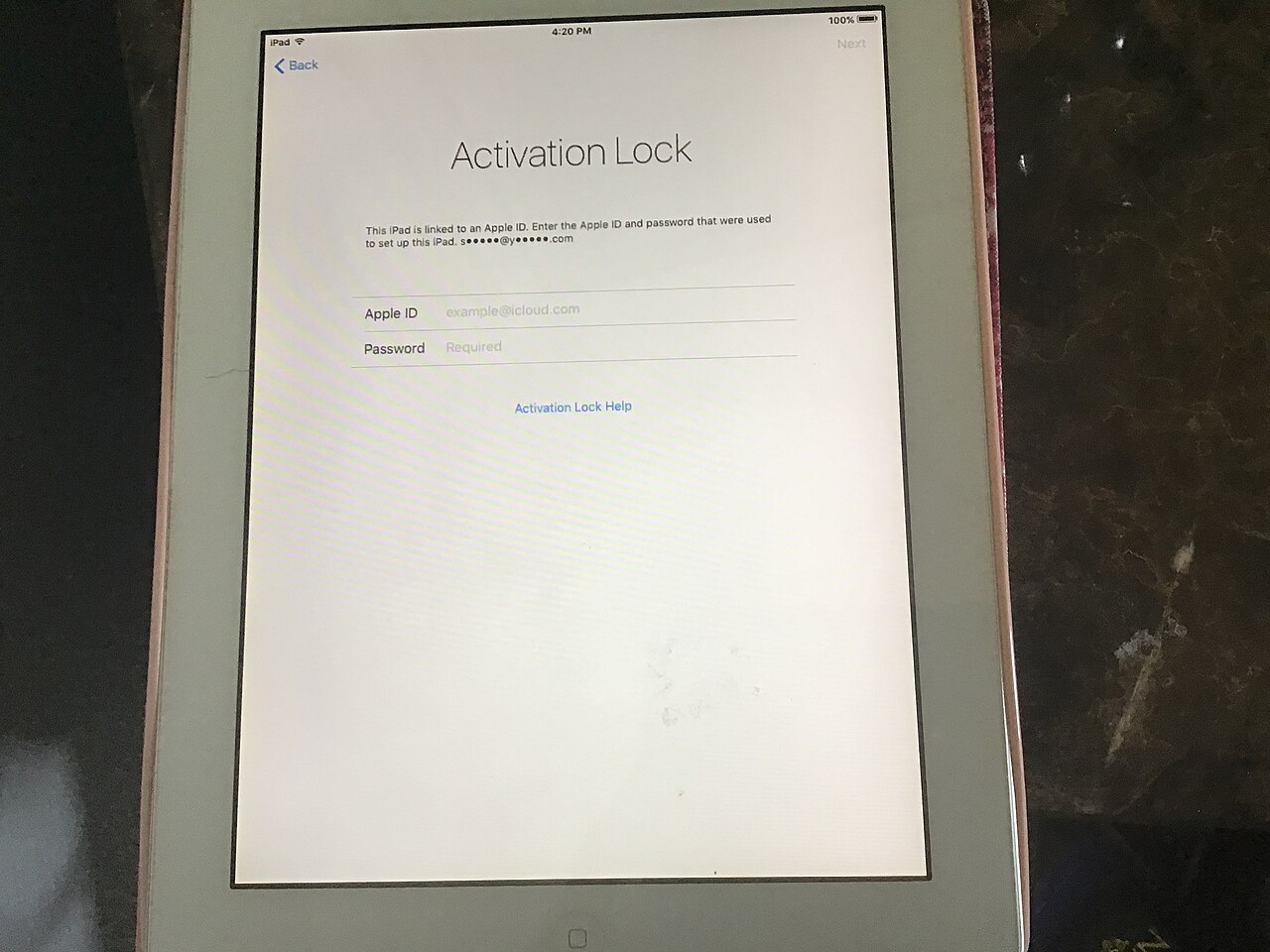
Start setup. If it asks for the previous owner’s Apple Account information, the iPad is still linked to that account. On iPadOS 15 or later, an iPad protected by Activation Lock shows a “Locked to Owner” screen when you turn it on or wake it. Apple’s line is “Don’t take ownership of any used iPhone or iPad if it’s protected by Activation Lock.” The iPad is ready when you reach the Hello screen.
If it’s locked
If the seller is with you, Apple says to hand the iPad back and ask them to enter their password. If they aren’t, they can remove the iPad from their account in a browser. Until one of those happens, don’t pay for it.
The lock turns on by itself when Find My is on, and Apple says the password is needed before anyone can turn off Find My, erase the iPad or reactivate it. Apple’s selling page says Find My and Activation Lock turn off when the owner erases the iPad, and that the owner may be asked for their Apple Account and password while doing it.
Find out which iPad it is
Ask for the model number, or read it off the back. It starts with an A and has four digits. The lookup on this site turns it into a model name, a year and a list of what works with it. Apple’s Identify your iPad model page is the source for every number.
Then check what that iPad still gets. This page says whether it runs iPadOS 27, and this one sorts every iPad by what Apple still gives it. An iPad that isn’t on Apple’s iPadOS 27 list keeps working on the version it has. It just won’t get iPadOS 27.
Coverage and cellular
Apple’s Check Your Coverage page looks up an iPad from its serial number, and the page links to how to find it. Ask the seller whether an AppleCare plan comes with the iPad: Apple’s selling page says the seller can cancel it or “transfer your AppleCare plan to a new owner.”
If the iPad has a cellular model number, ask the seller to erase the eSIM profile too. Apple tells sellers to choose the option to erase the device and the eSIM profile when it’s offered.
Apple’s pages were read on 26 Nov 2026.
Sources
- Identify your iPad model, Apple Support. Checked 23 Nov 2026.
- iPad models compatible with iPadOS 27, iPad User Guide, Apple Support. Checked 23 Nov 2026.
- Activation Lock for iPhone and iPad, Apple Support. How to check a used device, the Locked to Owner screen, and what to ask the seller. Checked 26 Nov 2026.
- What to do before you sell, give away, or trade in your iPhone or iPad, Apple Support. The seller’s steps: sign out, erase, and the eSIM and AppleCare notes. Checked 26 Nov 2026.
- Check Your Coverage, apple.com. Looks up coverage from a serial number. Checked 26 Nov 2026.